
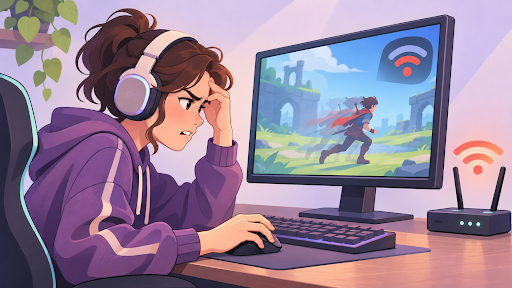
Nothing ruins an online gaming session faster than high ping. One moment, everything runs smoothly. The next, your character starts teleporting across the map, your shots don't register, and you're wondering why your internet suddenly hates you.
Here's the frustrating part: high ping doesn't always mean your internet is slow. Even with a fast connection, factors like overloaded Wi-Fi, distant game servers, background downloads, and inefficient network routing can cause noticeable delays.
The good news? You don't need to be a networking expert to fix most common ping problems. In this guide, we'll break down what causes high ping in online games and walk through nine practical ways to reduce lag, improve connection stability, and get back to playing without constant interruptions.
What Causes High Ping in Online Games?
Before trying to fix high ping, it helps to understand what's actually happening behind the scenes.
Ping measures how long it takes for data to travel from your device to a server and back. It's measured in milliseconds (ms), and generally, lower numbers mean faster communication between your game and its server.
For example, a ping of 20 ms usually feels responsive, while 150 ms can create noticeable delays in fast-paced multiplayer games. If you've ever fired at an opponent in Valorant or Counter-Strike 2 only to see your shot register too late, you've experienced how latency can affect gameplay.
But here's something many gamers overlook: internet speed and ping aren't the same thing.
Download speed determines how quickly you can receive data, while ping measures how long communication takes. You could have a 500 Mbps connection and still experience frustrating lag if your data takes an inefficient route to the game server.
Sometimes, your internet service provider (ISP) sends traffic through congested or unnecessarily long network paths. In these situations, testing a different route through a VPN service may help determine whether routing is contributing to your latency. However, a VPN can also introduce additional delay, so it's worth comparing your gaming performance with and without one.
Other common causes include crowded Wi-Fi networks, background downloads, outdated network software, and game servers located far from your region.
The trick isn't simply making your internet faster. It's identifying what's slowing down communication and fixing the actual problem.
9 Ways to Lower Ping and Fix Gaming Lag
You don't need an expensive gaming router or a complicated setup to improve your connection. Many ping problems can be addressed with a few straightforward changes.
Start with the simplest fixes before moving on to more advanced troubleshooting.
1. Choose a Game Server Closer to Your Location
One of the biggest factors affecting gaming latency is the physical distance between you and the game server.
Every time you move, shoot, or interact in an online game, your device sends information to a server. The farther that information travels, the longer the journey generally takes.
Imagine playing from New York while connected to a server in Singapore. Even with excellent internet, your data must travel thousands of miles before the server responds.
That distance creates unavoidable latency.
Whenever possible, select a server in your own country or nearby region. Games such as Valorant, Fortnite, and League of Legends offer regional server options or display latency information to help you choose.
If you're playing with friends overseas, you may need to compromise on a server that's reasonably close to everyone.
A nearby server won't solve every connection problem, but it's often the easiest way to reduce unnecessary ping.
2. Switch from Wi-Fi to an Ethernet Connection
Wi-Fi is convenient, but convenience doesn't always translate into stability.
Wireless signals compete with other devices, nearby networks, and sometimes even household electronics. Walls, distance, and interference can make your connection less consistent, particularly during busy gaming sessions.
That's why your ping might look perfectly normal one moment and spike unexpectedly the next.
An Ethernet cable removes much of that wireless uncertainty by connecting your gaming device directly to the router.
It won't necessarily produce a dramatic reduction in your average ping, especially if your Wi-Fi connection is already excellent. However, it can reduce jitter and connection interruptions, which often matter just as much as the average latency number.
Can't use Ethernet? Try moving closer to the router, switching to a less congested Wi-Fi band, or repositioning the router away from obstacles.
For competitive gaming, consistency usually beats convenience.
3. Pause Background Downloads and Updates
Ever notice how your game suddenly becomes laggy when someone starts downloading a huge file?
That's not a coincidence.
Large downloads, cloud backups, software updates, and video streaming can compete for your connection's available bandwidth. When that competition causes queues to build up in your router or modem, your gaming packets may have to wait longer.
The result can be higher ping, increased jitter, or sudden lag spikes.
Before launching a multiplayer game, check whether Steam, Windows Update, cloud storage services, or other applications are transferring large amounts of data.
Pause unnecessary downloads and close bandwidth-heavy programs running in the background.
It's also worth checking other devices connected to your network. Your gaming PC might be doing nothing unusual, but a television streaming high-resolution video or another computer uploading files could be contributing to congestion.
You don't need to disconnect everyone from the internet. Just reduce unnecessary traffic when connection stability matters most.
4. Restart Your Router and Check Its Settings
Restarting your router sounds almost too simple to be useful.
Yet it's a reasonable troubleshooting step when your network suddenly starts behaving differently.
Routers manage traffic between multiple devices, and temporary software or connection issues can sometimes affect performance.
A restart can clear certain temporary problems and re-establish your connection.
Turn off your router, wait about 30 seconds, and switch it back on. Give it time to reconnect before testing your game again.
If the problem keeps returning, check whether your router has a firmware update available. Manufacturers sometimes release updates to fix bugs and improve reliability.
You can also explore Quality of Service (QoS) settings, which help manage traffic priorities when multiple devices share the same connection.
More advanced routers may support Smart Queue Management (SQM), which can reduce latency caused by network congestion.
Just remember that these features help manage your local connection. They can't eliminate delays caused by distant game servers or problems elsewhere on the internet.
5. Check for Network Congestion During Peak Hours
Does your ping seem fine during the afternoon but become terrible every evening?
You might be dealing with network congestion.
Internet usage often increases when people return home from work or school. More users streaming, gaming, and downloading can place additional pressure on shared infrastructure.
Depending on your ISP and local network, that can lead to slower responses and unpredictable latency.
To investigate, test the same game server at different times of day. Pay attention to whether high ping consistently appears during particular hours.
If the problem happens only when several people in your household are online, the bottleneck may be your home network.
If it occurs even when your local connection is quiet, congestion farther upstream could be involved.
Try comparing results across nearby game servers. You can also run latency tests while your network is idle and while other devices are active.
Repeated patterns are useful evidence. If your ISP's network appears to be the problem, having test results makes it easier to explain what's happening when contacting support.
6. Test a Different Network Route
Sometimes, the problem isn't your Wi-Fi, computer, or game server.
It's the route your internet traffic takes to reach its destination.
Your ISP doesn't always send gaming data along the shortest or least congested path. Network agreements, peering arrangements, and changing traffic conditions all influence routing decisions.
This explains why two people living in the same city can experience very different ping values while connecting to the same game server.
One way to investigate is to compare your normal connection with an alternative route using a reputable VPN.
A VPN sends your traffic through an additional server, potentially changing the route it takes through the internet.
If your ISP's original route is particularly inefficient, the alternative may occasionally perform better.
But there's an important catch.
A VPN is not a guaranteed gaming accelerator. Encryption, server distance, and extra routing can increase latency rather than reduce it.
For a meaningful comparison, connect to a VPN server near the game server or along a potentially useful route, then measure your in-game ping and packet loss.
Try the same test without the VPN.
If the connection becomes more stable, you've discovered something useful. If performance gets worse, return to your normal connection.
The goal is better gaming performance, not adding tools simply because they sound helpful.
7. Update Your Network Drivers and Game Client
Not every lag problem comes from the internet itself.
Sometimes, outdated or malfunctioning software affects how your device communicates with the network.
Network adapter drivers are responsible for helping your operating system interact with its wired or wireless hardware. Driver bugs or compatibility problems can occasionally contribute to unstable connections.
Check your computer manufacturer's website or your network adapter manufacturer's support page for appropriate driver updates.
Also make sure your operating system and game client are reasonably up to date.
Game developers regularly release patches addressing connectivity bugs, matchmaking problems, and other performance issues.
However, don't expect updating a driver to magically cut your ping in half.
If your high latency comes from geographical distance or ISP congestion, a software update won't remove those limitations.
Think of this step as eliminating potential technical problems rather than guaranteeing a speed improvement.
And if a connection issue appeared immediately after an update, checking whether that update introduced a new problem may be just as important.
8. Check Whether the Game Server Is Having Problems
Sometimes, you're doing everything right.
Your Wi-Fi is stable. Your internet speed looks normal. No downloads are running.
Yet your game still feels terrible.
Before changing more settings, consider whether the game server itself is experiencing problems.
Server overload, maintenance, regional outages, and unexpected technical issues can disrupt gameplay even when your home connection is working perfectly.
Check the game's official status page, support channels, or developer announcements.
You can also see whether other players are reporting similar symptoms.
If everyone in your region is experiencing lag at the same time, there's a reasonable chance the issue isn't on your end.
Trying another available server may help, but sometimes the best solution is simply waiting for the developer to restore normal service.
There's little value in completely rebuilding your home network to fix an outage you can't control.
9. Measure Ping and Packet Loss Before and After Changes
Here's the mistake that makes gaming troubleshooting unnecessarily frustrating: changing several settings at once and then guessing which one helped.
A better approach is to measure performance before making changes.
Start by checking your ping in the game's network statistics or performance settings.
Record your typical latency, whether it spikes, and whether the game reports packet loss.
Then make one adjustment.
Switch to Ethernet, close background downloads, select another server, or test an alternative route.
Play under similar conditions and compare the results.
Keep an eye on three important measurements: ping, jitter, and packet loss.
Ping indicates how long communication takes. Jitter describes how much that delay fluctuates. Packet loss occurs when some data fails to reach its destination.
A connection averaging 45 ms with occasional severe spikes may feel worse than one holding steady at 60 ms.
That means chasing the lowest possible ping number isn't always the smartest goal.
Stable, predictable latency is what makes online games feel responsive.
Why Is My Ping Still High After Trying These Fixes?
You've switched to Ethernet, closed unnecessary apps, checked the game server, and tested your connection.
But your ping is still high.
What now?
First, consider whether you're connecting to a distant region. Physical distance creates a baseline level of latency that no router setting can eliminate.
If you're playing on another continent's servers, some delay is unavoidable.
Next, check whether your connection problems occur across multiple games or only one.
If every game experiences high latency, investigate your home network and ISP. If only one title is affected, the issue may involve that game's servers, matchmaking region, or network configuration.
For persistent problems, your ISP may be able to investigate line quality, congestion, or routing issues. Consistent test results can help support staff understand what's happening.
It's also worth separating network lag from hardware performance. Low frame rates, overheating, or insufficient system resources can make gameplay feel unresponsive even when ping is perfectly normal.
The more accurately you identify the source, the less time you'll waste trying unrelated fixes.
Final Thoughts: Lower Ping Starts With Finding the Real Problem
High ping is frustrating, but it doesn't have to ruin every gaming session.
The most effective approach is to identify what's causing the delay before throwing random solutions at it.
Start with the basics: connect to a nearby game server, use Ethernet when possible, and reduce unnecessary network traffic.
Then investigate router performance, network congestion, and routing problems if the issue continues.
Most importantly, measure your results instead of relying on guesswork.



Update