
Remote PC Gaming Anywhere: How to Play Your Steam Game on iPad With DeskIn
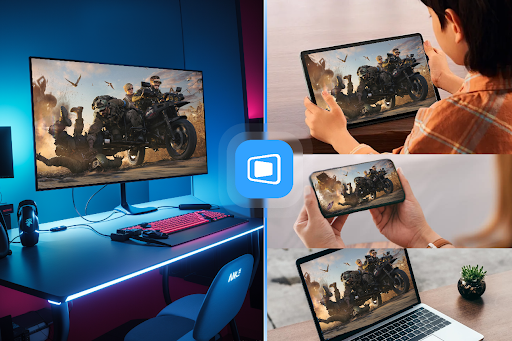
Ever wished you could continue your PC game progress while traveling, without lugging a heavy gaming laptop?
Many gamers face this situation: you have a powerful gaming rig at home, but work trips or family vacations force a multi-day break from your favorite titles. And let's be honest--sneaking in a quick gaming session during lunch break at work? That's the dream.
Thanks to modern internet speeds (Wi-Fi or 5G) and next-generation remote desktop software--DeskIn, you can now stream games from your home Windows PC to an iPad or smartphone. No gaming laptop required.
Enter DeskIn--a new breed of remote gaming software that's low-latency, high-frame-rate, and actually built with gamers in mind.
What Makes DeskIn Different?
Unlike traditional remote desktop tools that feel sluggish and blurry, DeskIn focuses on what matters for gaming:
-Up to 4K 60FPS or 2K 240FPS streaming quality
-Ultra-low latency - Around 40ms
-Customizable virtual keys combination layout - Play PC game on mobile with better gaming experience
-USB/Bluetooth controller support -Vital for micro-adjustments in FPS and racing games
-Cross-platform - Windows, macOS, iOS, Android
-3D mode - detect 3D views and turn on 3D mode automatically
-Screen utilization - Cast mobile game to bigger PC display, extend PC game to your iPad.
-File transfer -Download games from your remote host at lightning-fast speeds of up to 12MB/s.
The concept is simple: Leave your gaming PC running at home, log into DeskIn from your iPad or phone anywhere in the world, and boom--your entire Windows desktop (and all your installed games) streams directly to your handheld device.
How to Set Up DeskIn for Remote Gaming
Step 1: Prep Your Home Gaming PC
Start by installing DeskIn on your Windows PC (the one with all your games). Head to the Official DeskIn website and download the desktop version. Sign up for a free account and log in.
Pro tips for optimal performance:
-Hardware matters: For smooth 2K 240FPS streaming, an NVIDIA GeForce RTX 4070 or higher is recommended. Make sure your GPU drivers are updated so DeskIn can use hardware encoding (H.264/H.265) to minimize latency.
-Wired > Wi-Fi: Connect your PC to your router via Ethernet cable. This ensures stable upload bandwidth--crucial for lag-free streaming.
-Security settings: In DeskIn, go to Advanced Settings → Security Settings, enable "Allow controlling this device," and set authentication to "Use only security password." Create a password so you don't need someone at home to approve your connection every time.
Keep your PC powered on (or set up Wake-on-LAN), and you're ready.
Step 2: Install DeskIn on Your Mobile Device
Grab your iPad, iPhone, or Android device. Head to the App Store or Google Play, search for "DeskIn Remote Desktop," and install the app. Log in with the same account you used on your PC.
Once logged in:
-Go to the Device List and select your home PC
-Tap Remote Control to establish an encrypted connection
-After connecting, your iPad or phone will display your Windows desktop.
You're basically controlling your PC via touchscreen. Start with "Smooth" or "HD" quality settings. If you're on solid 5G or fast Wi-Fi, bump it up to "High Performance" or "Game Mode" for the best experience.
Step 3: Activate Game Mode & Set Up Controls
This is where DeskIn shines for gaming.
Virtual Controller Layouts:
-In the iPad DeskIn app, tap the settings icon in the bottom-right corner
-Under Screen, enable Game Mode
-Go to Keyboard/Mouse and select Game Keyboard
Now you can create custom on-screen controller layouts for each game. Add virtual buttons like:
-Left/right/middle mouse clicks
-Scroll wheel
-Directional pad or joystick
-Combination keys
You can design a unique layout optimized for every game in your library.
Using a Physical Controller:
Prefer the feel of real buttons? DeskIn supports most Bluetooth and USB game controllers:
-Pair your controller with your iPad/phone first
-In DeskIn settings, enable Controller Mapping
-Your PC will recognize it as an Direct Input controller
Once everything's set up, launch Steam, Epic Games, or Xbox App from your remote desktop, and start playing--just like you're sitting at your PC.
Pro Tips for the Best Remote Gaming Experience
| Tip | Why It Matters |
| Use wired internet at home | Stable upload = less lag |
| 5GHz Wi-Fi or strong 5G on the go | Avoid playing in subways or elevators |
| Lower in-game resolution | If your PC has a 4K monitor but you're on a phone, drop to 1080p or lower--smoother 60fps is worth it |
| Close background apps | Shut down downloads, streams, or browsers on your PC to free up bandwidth |
| Best game types for remote play | Turn-based, RPGs, simulation, card games work great. Fast-paced FPS or fighting games? Possible, but requires fine-tuning |
| Dual monitor? No problem | In DeskIn screen settings, choose which monitor (1 or 2) to display |
Can't Decide Between Mac for Work and PC for Games? Get Both.
Play Windows Game on Mac
MacBooks are fantastic work machines--great battery, beautiful screens, and now with M4/M5 chips, the graphics performance is no joke. But let's be real: Mac is still not the first choice for gamers.
With DeskIn, you don't have to choose. Keep your gaming PC at home, take your MacBook on the road, and stream your entire PC game library directly to macOS. No Boot Camp, no emulators, no compromises.
Need Help? DeskIn AI Assistant Has Your Back
DeskIn 3.3.4.0 and above includes a built-in AI assistance. It's not just a FAQ bot--you can ask natural language questions like:
"Help me connect to my MacBook"
"How do I optimize for gaming?"
The AI understands your current setup and gives instant, actionable advice. It can even initiate connections or fetch files without manually navigating through menus.
DeskIn Pricing: Which Plan Fits You?
DeskIn offers both free and paid tiers. DeskIn Free version lets you connect up to 3 devices--perfect for basic setups like "office PC + home PC + laptop/tablet."
| Plan | Best For | Key Features |
| Free | Students, casual users, occasional remote access | Basic remote control, screen extension |
| Standard | Light office work, higher quality needs | Better image quality and smoothness |
| Gaming | Gamers (this is you) | 2K 240FPS, game controller/mouse/keyboard support |
| Performance | Remote design, video editing, engineering | Top-tier specs for professionals |
Special Discount for Readers
Want to try cross-platform remote desktop? Start with the free version--it's surprisingly capable. But if you're serious about remote gaming, editing, or design, upgrading makes sense.
Exclusive offer for readers:
Use promo code 【game】 at checkout to get:
50% off on a one-month plan
20% off on a yearly plan
Platform Availability
Ready to play? DeskIn works across: Windows, macOS, iOS, and Android. Linux version is in the pipeline.
Conclusion
DeskIn transforms traditional remote desktop into a dedicated game streaming platform. It's perfect for anyone with a high-end gaming PC at home who wants to play on the go. Invest a little time setting up your account, optimizing settings, and customizing controls--and next time you're at a coffee shop, in a hotel, or on a lunch break, your entire PC game library is just a tap away.



Update