
You download a model and double-click it, but nothing happens--or your computer asks which program should open the file. This is a common experience for people working with 3D-printing files.
STL is a common format in 3D-printing workflows, but operating systems do not always preview it natively. An online STL viewer offers a quick way to inspect the model without installing a full CAD application.
What Is an STL File?
STL stands for stereolithography; the abbreviation is also commonly interpreted as "standard tessellation language." The format represents a 3D surface as a mesh of small triangles. It stores geometry but not texture, material, or unit information.
This simplicity helps make STL widely supported by slicers and CAD tools. It also explains why desktop operating systems may not provide a useful built-in preview.
Reasons to Use an Online STL Viewer
Traditional CAD applications can open STL files, but they may be unnecessary for a quick inspection. An online viewer can offer:
-No installation. Open the viewer and load the file.
-Cross-platform access. A modern browser on Windows, macOS, Linux, or ChromeOS is generally enough.
-Speed. Many files open within seconds, depending on their size and complexity.
-A quick visual check. You can confirm that an unfamiliar file is the expected model before moving it into a slicer.
For a fast inspection, an online STL viewing tool can be the most convenient option.
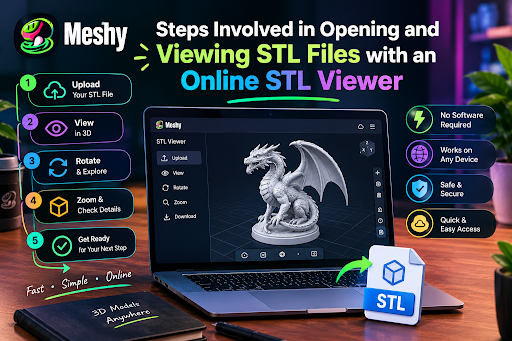
How to Open an STL File Online
It's straightforward, and it will only take a moment.
-Open an online viewer in your web browser. Choose one that supports drag-and-drop and has a privacy policy appropriate for your file.
-Drag the STL file into the viewer or use its file picker.
-Wait for it to load. Large or highly detailed models may take longer.
-Inspect the model. Rotate, pan, and zoom to check it from several angles.
Some viewers require no account or software installation. Confirm the requirements and privacy behavior of the specific tool you choose.
Key Points in Checking an STL File
Opening the file is only the first step. A quick inspection can reveal problems before you spend time and material on a print.
Shape and Scale
Confirm that the overall shape matches your expectation. Rotate the model fully; a shape that looks correct from the front may reveal missing geometry or an unexpected protrusion elsewhere.
Holes and Gaps
An STL intended for printing should describe a watertight surface. Small gaps or missing faces can cause slicers to interpret the volume incorrectly. Dark patches or visible openings may indicate a problem, but a dedicated repair tool is needed for a reliable diagnosis.
Thin Walls and Fine Detailing
A model may look correct while containing walls or features too thin for a particular printer. Zoom in on handles, text, and connectors, then check them against your printer, nozzle, material, and settings.
Flipped Normals
Each triangle has an orientation. If some faces point inward, a viewer may show unusual shading or dark areas. A slicer or mesh-analysis tool can confirm whether normals are flipped.
Orientation and Overhangs
Consider how the model will be placed on the printer bed. Some models might require support due to their large overhangs, and certain ways of printing can give you better results than others.
Typical Problems and Their Resolutions
The file will not open. This may be due to corruption or that it is too big to load. Try downloading it again.
The model looks tiny or huge. STL files contain no unit information, so a model authored in inches may be interpreted as millimeters, or vice versa. Confirm the intended dimensions before slicing.
The model looks coarse or blocky. The mesh may have been exported with too few triangles, causing curved surfaces to appear faceted.
Parts are missing. The file may contain multiple bodies, or geometry may have been lost during export.
When a Viewer Isn't Enough
A viewer is designed for inspection, not repair. If you find a problem, use a mesh-repair tool, slicer, or 3D editor. Detecting the issue early still saves time.
For routine checks of downloaded, client-provided, or self-created STL files, an online STL viewer is often sufficient.
Conclusions
You do not need a powerful computer or a full CAD suite just to inspect an STL file. A browser-based viewer can help you confirm the shape and decide whether the model is ready for slicing.
Make file inspection part of your pre-print routine. A few moments of review can prevent a failed print and wasted filament.



Update